Generative Endpoints
Generative Endpoints define the language model connections used by the Knowledge Base for AI-powered interactions. Each endpoint specifies the model provider, model configuration, and token limits that govern how the Knowledge Base generates responses.
Supported LLM providers
You can connect to the following large language model (LLM) providers:
- Druid
- AzureOpenAI
- OpenAI
- Google VertexAI
- Mistral AI
- Mesolitica – MaLLaM - This LLM provider is available in DRUID 9.1 and higher.
- AWS Bedrock - This LLM provider is available in DRUID 9.5 and higher.
Add a New Generative Endpoint
To add a generative endpoint:
- Click Add new.
- Configure the required parameters (see details below).
- Click Save.
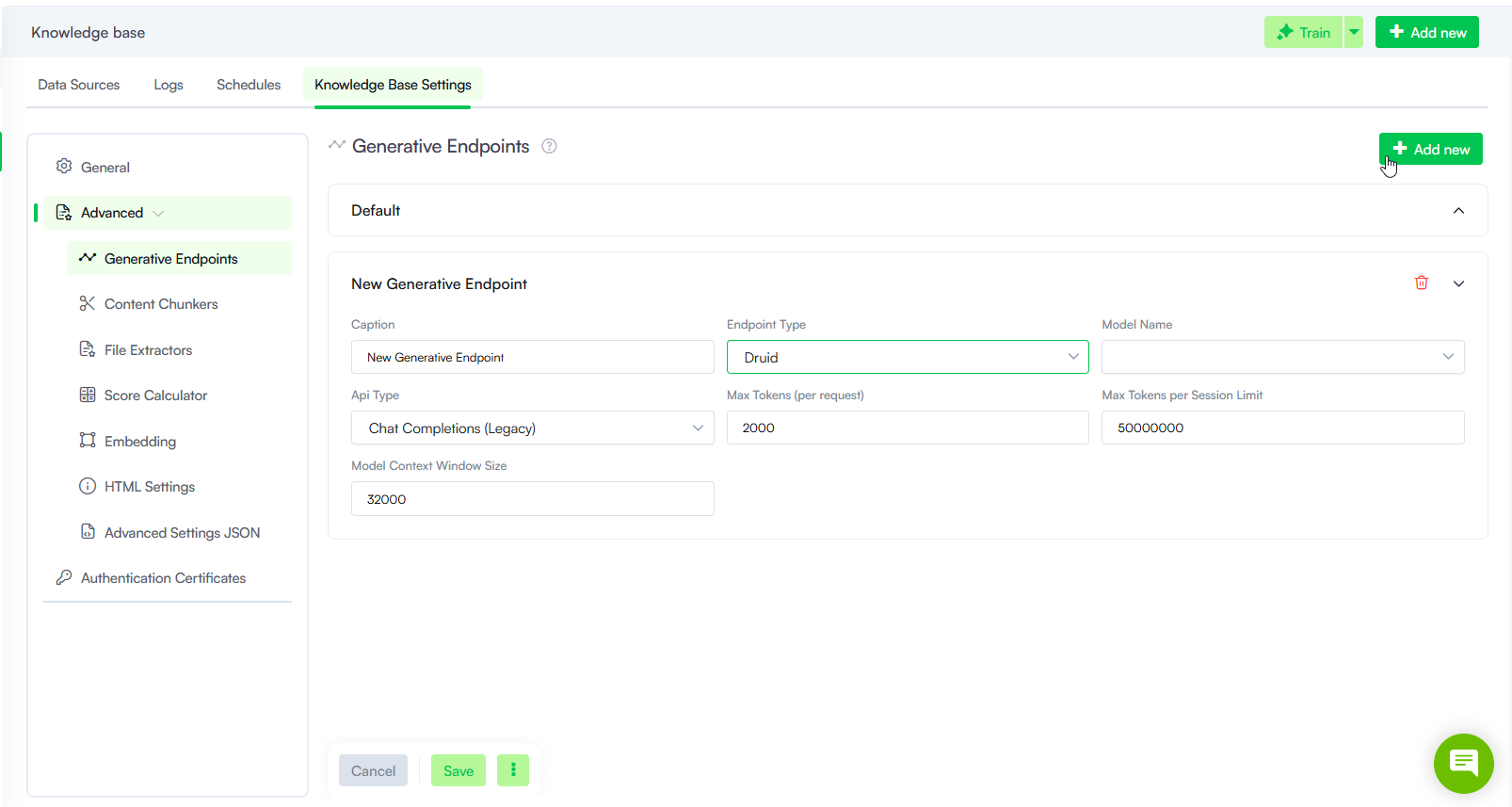
Generative Endpoint Parameters
The table below describes the Generative Endpoint parameters.
| Parameter | Description |
|---|---|
| Caption |
The display name of the endpoint in the UI. Use a descriptive name to distinguish between endpoints when managing multiple connections. |
| Endpoint Type |
Determines the source of the LLM connection:
|
| Model Name |
Select the generative model to use for this endpoint. The available options depend on the selected Endpoint Type:
Different models offer varying capabilities, performance levels, and token limits. |
| API Type |
This field is available for Azure OpenAI models (in Druid 9.19 and higher). Select one of the following:
Info: For other providers, the platform defaults to the standard completion settings compatible with those models.
|
| Max Tokens (per request) |
The maximum number of tokens that can be used in a single request. This limits the amount of text the model processes at once. Some models have predefined maximum token limits — for example, gpt-4 supports up to 8,000 tokens per request. Info: If your AI Agent processes large data volumes, adjust this setting to ensure efficient token allocation and cost management.
|
| Max Tokens per Session Limit |
Max Tokens per Session LimitThe maximum number of tokens the model can use in a single extraction session (i.e., per data extraction action). This prevents excessive token usage and helps manage costs. Info: If your AI Agent processes large data volumes, adjust this setting to ensure efficient token allocation and cost management.
|
| Model Context Window Size |
The total number of tokens (input + output) the model can process in a single interaction. If the total token count exceeds this limit, the response is truncated. Example: If the context window is 32,000 tokens and the input is 28,000 tokens, the model can generate up to 4,000 output tokens before reaching the limit. |
Optimization tips
- Monitor token usage: Track logs to see if users hit limits often. Adjust if needed.
- Start conservatively: Use lower limits initially and increase based on real-world demand.
- Balance cost vs. performance: If costs are too high, lower Max Tokens per Session Limit or reduce Model Context Window Size.
- Fine-tune for efficiency: Shorten responses where possible and use summarization techniques to keep output concise.